

Intune offers a handful of ways to offboard a device, whether it’s being booted out of the company for good or just getting repurposed for another user or task.
The options are: Retire, Wipe, Fresh Start, and Autopilot Reset.
For this article, we’re focusing in on Retire. Microsoft describes Retire like this:
“The Retire action removes managed app data (where applicable), settings, and email profiles that were assigned by using Intune. The device is removed from Intune management. Removal happens the next time the device checks in and receives the remote Retire action. The device still shows up in Intune until the device checks in.”
If you scroll a little further down, they provide some specifics for Windows 10:
“Apps are uninstalled. Sideloading keys are removed. For Windows 10 version 1709 (Creators Update) and later, Microsoft 365 Apps aren’t removed. Intune management extension installed Win32 apps aren’t uninstalled on unenrolled devices. Admins can use assignment exclusion to not offer Win32 apps to BYOD Devices.”
Great, but what does that actually mean? What exactly is “managed app data”? Are we talking about documents in Word that are labeled as company-owned? Or is it just app data like cache and temporary storage? Are we quietly erasing the company’s secrets or just clearing cookies? WHAT DOES IT MEAN, MICROSOFT?!
To get some clarity (or more confusion), I put together a little test using a virtual machine. This VM was Entra Joined and enrolled in Intune. I gave it some security baselines, like BitLocker, and had it install Microsoft 365 apps, Google Chrome (as a Line of Business app), and the Company Portal. I also installed Firefox directly on the endpoint outside of Intune.
Next, I created some test documents. To spice it up, I labeled some with sensitivity tags like “Confidential” and “Public,” while others were left unlabeled. These files were stored in various locations: the Desktop, OneDrive, and my personal favorite a secret folder in the Program Files (x86) directory called “STOLEN DATA.”
Remember, if you’re planning to steal company data, it’s absolutely mandatory to store it in a folder named “STOLEN DATA.” It’s like the rule where, if you ask an undercover cop if they’re a cop, they have to tell you. Trust me, I used to be a cop totally legit. It’s basically a get-out-of-jail-free card.
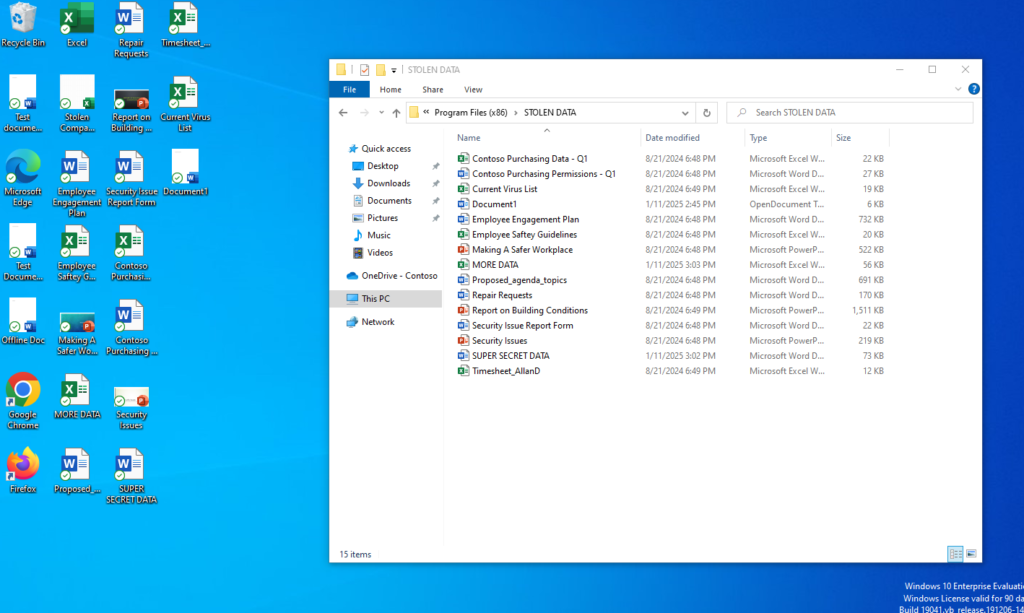
So, what’s going to happen to all these items when I retire this device from Intune? Maybe it’s a personal device that got Entra Enrolled for some odd reason, or perhaps we’re letting the employee keep the computer after they’ve left the company. Whatever the case, in this made up scenario, we’re choosing “Retire” to see exactly what Intune removes and when.
When you click “Retire” in Intune, you’re greeted with this message:
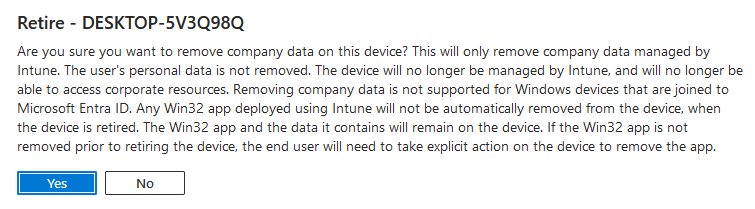
This basically reiterates what we’ve already seen in the documentation. However, there’s an important note: it mentions that “Windows devices that are joined to Microsoft Entra ID” are not supported. So, what does that mean? Will it just fail gracefully, create a world destroying black hole or will it completely break the users profile?
LET’S FIND OUT.
A few seconds after hitting that shiny “Retire” button, this is what I see:
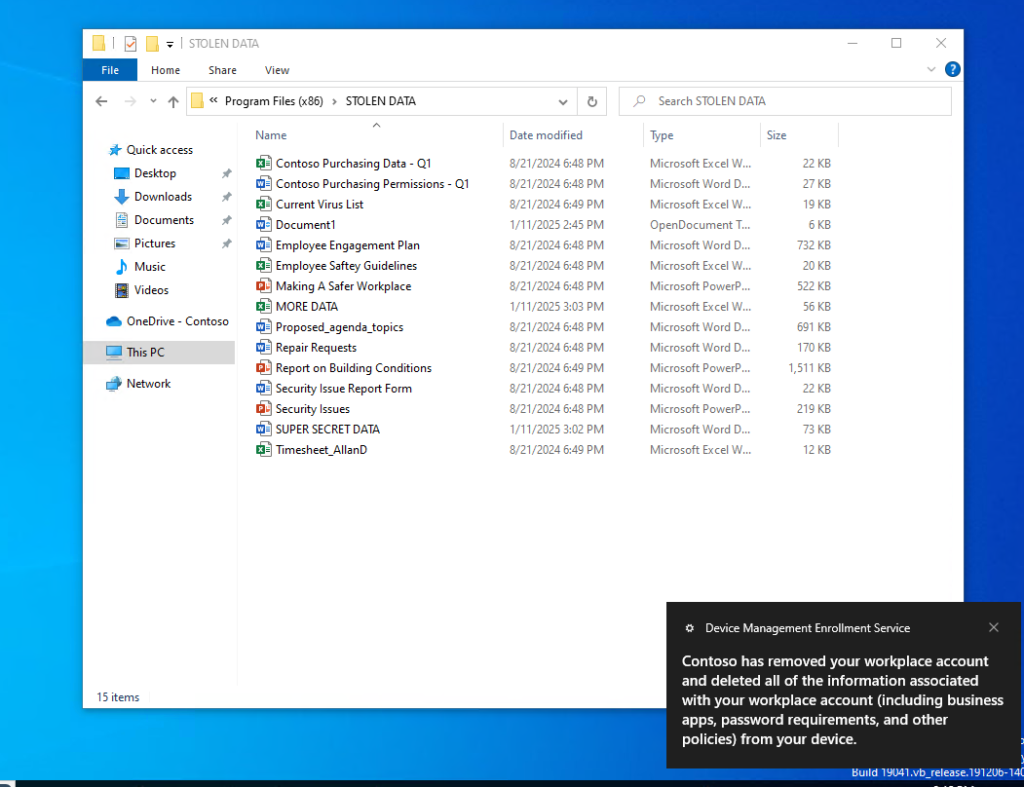
Google Chrome vanished from the computer almost instantly. However, as the article mentions, the Microsoft 365 apps stuck around to see the show. And all the company data? Still sitting pretty, untouched. Naturally, I had to see what I could do with it.
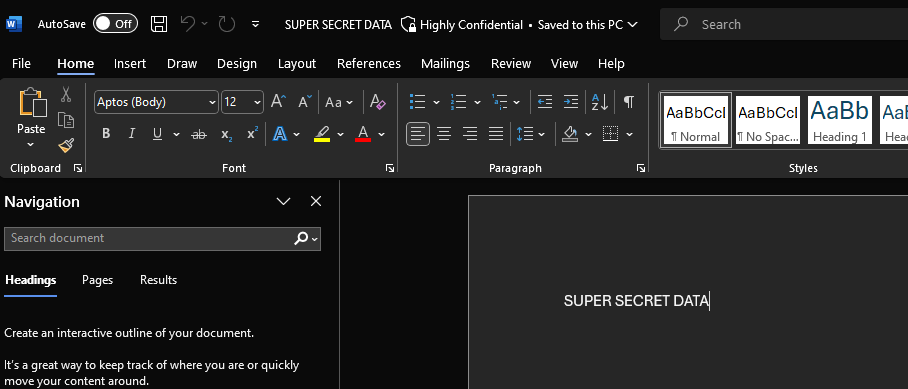
Interestingly, I was still able to access all the documents without any restrictions. Nothing stopped me from opening them, and surprisingly I could even change the sensitivity labels without any problems.
However, some strange behavior started happening. I could no longer use the Windows Search bar it wouldn’t let me type, and it just sort of hung there, as if the computer was having an existential crisis. I assume it wasn’t thrilled about losing its profile identity and was basically saying, “Umm, what is happening to me?” At this point, the profile was effectively in an orphaned state. If I were to sign out or restart the computer, I wouldn’t be able to log back in.
Now, I should mention that I have a Conditional Access (CA) Policy in place that blocks app access from non-compliant devices. Despite this, I could still access all the apps and data. It seems the system still considered the device compliant. I left it running for about 5 minutes, but I wasn’t kicked out of Outlook, Word, or any other Microsoft 365 app as a result of the CA Policy. In fact, I was still able to send and receive emails during this time. Weird, right?
This likely happened because my initial access was granted while everything was fine, and the compliance check hadn’t refreshed yet.
But then, after a few more minutes, the computer went full black screen and started doing this:

So, I went ahead and restarted the VM to see what would happen if I tried to log back in. Sure enough, the profile’s identity was completely broken. No matter what password I used even after resetting it freshly in Microsoft 365 it refused to accept it. The same thing happened with my PIN. The device was essentially locked out, confirming that the profile had officially entered the “lost cause” phase.

So, what’s the takeaway here? Don’t retire Entra Joined devices unless you’re in the mood for some seriously whack behavior. The process leaves the profile in an orphaned state, messes with functionality, and ultimately locks you out entirely.
Next time, we’re going to take this experiment to an Entra Registered Device (aka BYOD) and see how things play out there. Stay tuned!