
In my previous article, we explored what happens when you retire an Entra Joined device from Intune. If you didn’t read it, here’s a quick spoiler: it caused some seriously weird behavior.
This time, we’re going to approach it properly with an Entra Registered Device that’s being retired from Intune. This could be a BYOD situation (though, this is not the way you should handle BYOD devices) or a device that was never joined to the company domain properly, which is pretty common. Whatever the reason, we’re diving in to see how the experience differs.
For context, if you haven’t memorized Microsoft’s description of the Retire action, here’s the official description:
“The Retire action removes managed app data (where applicable), settings, and email profiles that were assigned by using Intune. The device is removed from Intune management. Removal happens the next time the device checks in and receives the remote Retire action. The device still shows up in Intune until the device checks in.”
And if you scroll further, Microsoft provides additional specifics for Windows 10 devices:
“Apps are uninstalled. Sideloading keys are removed. For Windows 10 version 1709 (Creators Update) and later, Microsoft 365 Apps aren’t removed. Intune management extension installed Win32 apps aren’t uninstalled on unenrolled devices. Admins can use assignment exclusion to not offer Win32 apps to BYOD Devices.”
So, same process as last time, but this time the VM was Entra Registered and then enrolled in Intune. I applied the same security baselines as before (though BitLocker had to be done manually since registered devices don’t support enforced encryption) and installed the same apps. I did, however, add two additional programs for this test: a random VPN app and Adobe Creative Cloud, both deployed via the Microsoft Store through Intune.
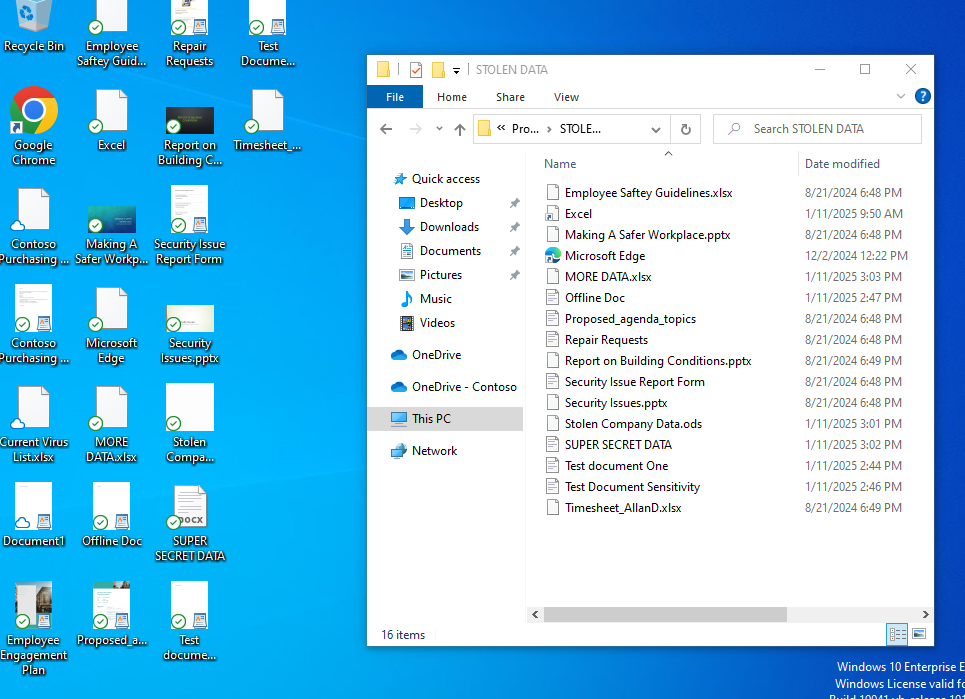
Next, I recreated the same test documents as before: some labeled with sensitivity tags and others left unlabeled. These files were stored in various places, including the Desktop, OneDrive, and of course my super-secret folder in the Program Files (x86) directory called “STOLEN DATA.” This time, I also tested Files on Demand (aka “files that aren’t stored locally but show up as convenient shortcuts to their cloud locations”).
Let’s see how things play out with this setup.
What’s going to happen this time? Will Retire actually get rid of these files or at least block my access to them? Will the user profile still work, or will it go into another orphaned state? And most importantly, will it finally stop my cat from screaming at me for reasons I don’t think they even understand?
LET’S FIND OUT!!!
I clicked that Retire button once again, and just like last time, I got the message informing me that my organization had removed my device.
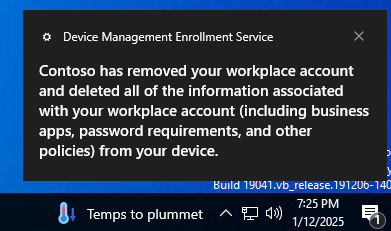
However, unlike last time, Windows immediately let me know that my PC would sign me out in 10 minutes. I took this as a challenge to see what I could still accomplish during those 10 minutes.
I found that I could still send emails, open documents, and change sensitivity labels without any issues. Chrome, once again, vanished almost instantly after clicking Retire. However, the VPN software and Adobe Creative Cloud, both installed via the Microsoft Store via Intune, were left untouched.
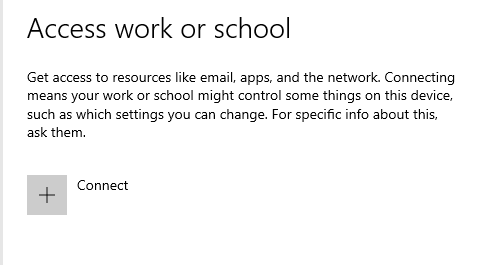
When I checked the Access work or school settings, my work profile had already disappeared. This was expected, but it confirmed that the device was no longer tied to my organization.
The computer restarted after the 10 minutes. When it came back up, I was prompted to enter my regular password and this time, it actually accepted it. I was able to log in and return to the desktop. However, I was immediately greeted by the notice that “OneDrive isn’t signed in”. Sure enough, I had been signed out of all my apps, and due to the Conditional Access policy requiring a compliant device, I couldn’t sign back into any of these apps due to this.
I still had access to all the “non-Files on Demand” documents, which isn’t surprising. Retire isn’t designed to remove these files, as its purpose on Windows is to “remove managed app data (where applicable),” and documents created by these apps don’t qualify as app data.
I did lose access to the Files on Demand documents, which wasn’t surprising. Since they depend on an active OneDrive connection and I was forcibly logged out, it makes sense that they became inaccessible.
Additionally, all security policies were removed from the computer, including a suspension of my BitLocker encryption. It essentially reverted the device to what it mostly was before joining the company. All of this aligns with what I already expected.
So, what lessons did we learn here?
Was it that allowing people to download company data onto BYOD devices is a great idea? Nope. Was it that this is the best way to handle BYOD devices? Not that either…
Here’s what we really learned:
- Don’t rely on the “Retire” command to remove company data from a device. It doesn’t remove everything, and critical files could still be left behind.
- Never use the “Retire” command on Entra Joined devices. It causes chaos and breaks the identity of the profile.
- “Retire” primarily removes Intune policies, a few LOB apps, and not much else. It’s not designed for removing company data. If wiping company data is the goal, the “Wipe” option is your go-to.