
Today, we’re going to talk about “Strings” and how they can simplify deploying Win32 apps. Strings have been a lifesaver for me when dealing with applications that lack proper documentation.
You might be wondering, “What are Strings?” Strings are embedded UNICODE data that aren’t easily visible with standard ASCII tools or search programs like grep. Essentially, they help you uncover install commands for applications.
When deploying a Win32 app via Intune, the goal is usually to make the installation run silently in the background without any user interface. This is often achieved by adding -s or -silent to the end of the install command.
But what if those switches don’t work and there’s no documentation to guide you?
Strings to the rescue! You can download the tool here: Sysinternals Strings.
Once downloaded, place it in a folder with the application you’re trying to convert into a Win32 app. Then, run the following command:
.\strings64.exe .\<application here .exe> .\strings.txt
This will output all the strings found in the application. The file might contain hundreds of thousands of lines, but you can narrow it down using options like -n, which adjusts the minimum string length. CTRL-F will be your friend here. I recommend using a tool like Visual Studio Code to help find these easier. It can take a bit to find what you’re looking for. But It hasn’t failed me yet!
For this demo, I used the Microsoft Windows 11 upgrade tool. The results revealed several useful commands, such as:
- /quietinstall
- /UninstallUponUpgrade
- /SkipEULA
- /NoRestartUI
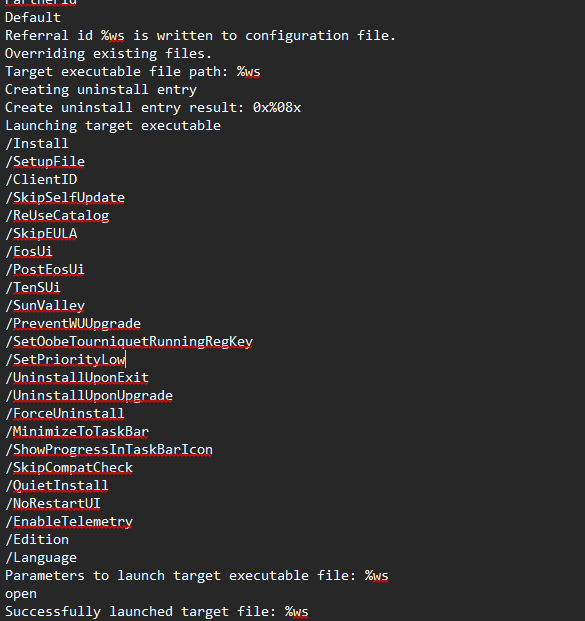
Using these, we can customize the installation to:
- Run silently
- Skip the EULA (required for silent installs)
- Uninstall the tool once the upgrade is complete
- Do not show countdown UI for restart
Strings is a powerful tool for uncovering hidden installation options, especially when documentation is lacking.