
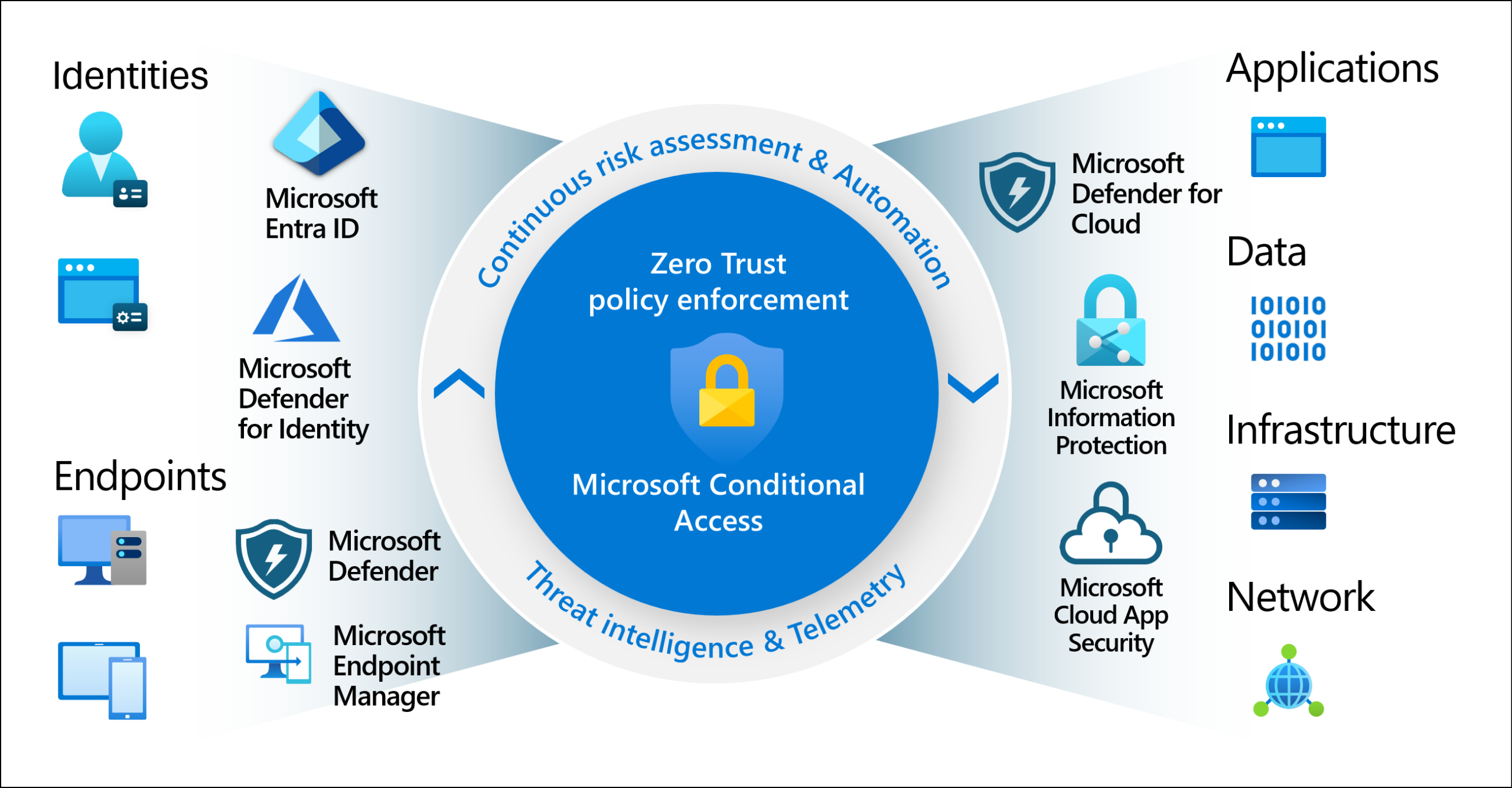
Conditional Access is one of the best tools in your Microsoft environment for securing access. With it, you can control who, what, where, when, someone or something tries to get in. And sort of why, though it’s really more like the opposite of why. We’ll get there later. I promise.
But let’s start at the beginning so everyone has the same baseline. About 4 billion years ago, some single-celled microscopic organisms decided they wanted more than one cell. Fast forward 4 billion years and now you need to work 40 hours a week, pay taxes and read pointless things. You can thank them later.
Anyway, somewhere between the primordial soup and waiting for the new Elder Scrolls game, things got complicated. We went from “just use a password” to requiring complex passwords, MFA, trusted locations, trusted devices, time-based access, and more. Again, you can thank those early organisms.
Requiring all those different things before granting access to a resource is called Conditional Access. The name is pretty literal: you set conditions that must be met before access is granted. That resource can be anything from email, to an HR app, to signing in as a Global Administrator.
Here are the two biggest rules you need to know about Conditional Access:
- It’s “And” based.
- It doesn’t block by default.
What do those two things mean? Let’s start with rule number one. For a Conditional Access policy to fire, all of its conditions must be met at the same time.
Take the example below.
Users or agents (Preview) i
All users
Target resources i
All resources (formerly ‘All cloud apps’)
Network NEW i
Not configured
Conditions i
1 condition selected
Grant * i
1 control selected
Session * i
0 controls selected
Apply policy to selected device platforms.
Control access enforcement to block or grant access.
In plain English this policy reads: any user, accessing any resource, from a Windows device, will be required to use MFA.
The ANDs here are: Any User AND Any Resource AND Windows Device. All three must be true before the policy fires. What do you think happens if that same user would try to access that resource from a Mac device? They would be blocked right?

This brings us to our second point. Conditional Access does not block by default. In this case, only users accessing any resource from a Windows device would be required to do MFA. All other users accessing from literally any other device type would waltz right in without MFA. This is because Conditional Access allows things through unless they are explicitly blocked, or the policy is scoped wide enough to catch everything.
Review the policy below and try to figure out if this policy would apply or not to someone logging in from that same Mac device mentioned earlier.
Users or agents (Preview) i
All users
Target resources i
All resources (formerly ‘All cloud apps’)
Network NEW i
Not configured
Conditions i
0 conditions selected
Grant * i
1 control selected
Session * i
0 controls selected
Apply policy to selected device platforms.
Control access enforcement to block or grant access.
The answer is yes, it would. Why? Because when you don’t configure a condition, it isn’t used as a filter. By not selecting a device platform, we’re basically telling the policy “apply to all devices.” Even though there’s an “Any device” option sitting right there, leaving the condition unconfigured gets you to the same place. By selecting nothing, you’re selecting everything. Clear as mud right?
Worth noting though: this only applies to Conditions and Network. Users or agents and Target resources behave differently. If you don’t select anything for either of those, the policy won’t fire at all. Those two fields need something explicitly selected to work.
In the intro we mentioned “Who, what, where, when and why”, lets cover that real quick.
WHO
Pretty simple. Who does this policy apply to? All users? Just admins? Guests? Without defining the WHO, the policy will never trigger. This is a required field, not optional.
WHAT
Also straightforward. What is this policy targeting? All apps? Just Microsoft 365 apps? A third-party app? Your HR application? Same as WHO, if nothing is selected here, the policy sits there doing nothing.
WHERE
This one covers a few things, but the easiest way to think about it is “where is the access coming from?”
That breaks down into a few sub-categories:
- Network: Is the access coming from a trusted location, a named network, or a specific country?
- Authentication type: Is it modern authentication or legacy authentication?
- Device platform: Windows, Mac, Android, iOS, Linux?
- Device state: Is the device Entra joined? Is it compliant?
Unlike WHO and WHAT, WHERE is not required. Not configuring a location or device condition doesn’t block those scenarios, it just means WHERE isn’t a factor in whether the policy fires.
WHEN
WHEN actually has two sides to it.
The first is something most people don’t think about until it bites them. By default, and in the absence of custom token lifetime policies, Entra ID issues refresh tokens with a rolling 90-day lifetime. That means as long as a user is actively signing in, that token keeps refreshing and they may not be prompted to fully reauthenticate for up to 90 days. In practice, a user could authenticate once and stay authenticated for months without ever being challenged again. That’s a long window for a compromised session to go undetected.
This is why you should have a CA policy that explicitly sets a sign-in frequency, forcing reauthentication on a schedule you control rather than relying on the default.
The second side of WHEN is a bit of a hidden feature. You can create time-based CA policies that restrict what hours users are allowed to sign in. The catch is that this is only available via Microsoft Graph and is not officially supported in the portal as of the time of writing. We won’t go deep on it here, but Sebastian Markdanner has a well-written walkthrough on it here if you want to dig in.
WHY
WHY isn’t used in the traditional sense here. Think of it as “why should this sign-in be treated differently?” Maybe the sign-in risk is high and you want to block access entirely. Maybe the user account itself is flagged as risky and you want to require a stronger authentication method. WHY is driven by signals, and CA reacts to those signals rather than asking the user to explain themselves.
Report-Only Mode
Before you flip a policy on and potentially lock someone out of their email at 9am on a Monday, Conditional Access gives you a safer option called Report-Only mode.
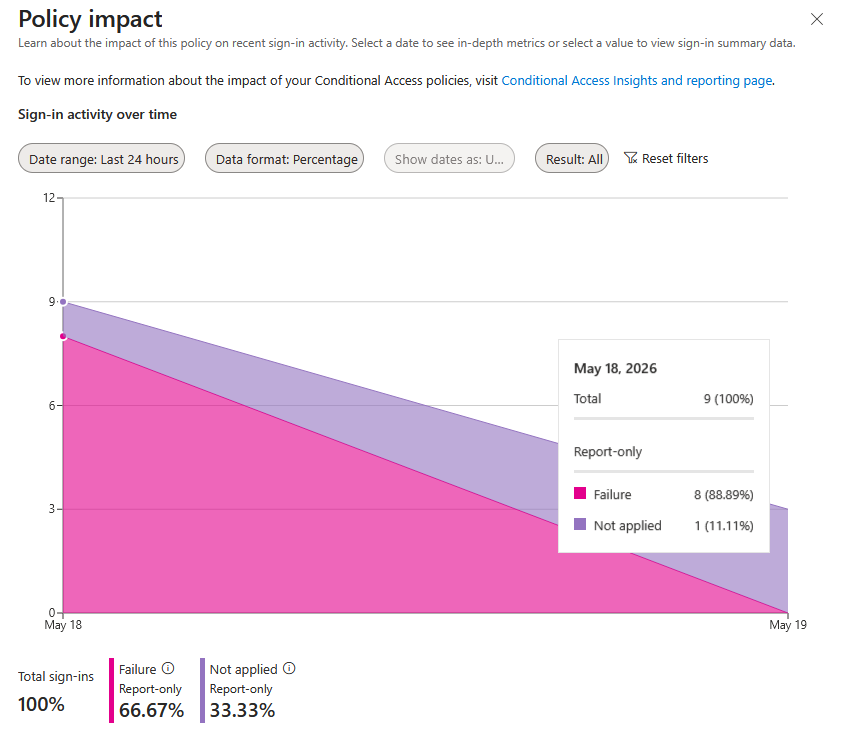
When a policy is set to Report-Only, it evaluates every sign-in against the policy conditions but doesn’t actually enforce anything. Users get through regardless. What you get instead is a log of what would have happened if the policy were enabled. Would that sign-in have been blocked? Would MFA have been required? Report-Only tells you, without any of the consequences.
To check the results, head to Entra ID > Conditional Access > The Policy > “View Policy Impact. Here you will see you’ll see what sign-ins would’ve been blocked “Failure Report-Only”, what ones would’ve been successful. You can use this report for when the policy is live as well.
This is how you validate a new policy before it goes live. Run it in Report-Only a few days to a few weeks, review the impact, make sure it’s catching what you intended and not catching what you didn’t, then enable it. Hint you can click on the different colors and it will show you the sign-in logs.
The What-If Tool
Report-Only works great for ongoing monitoring, but sometimes you want a faster answer: “would this policy apply to this specific user signing in from this specific location right now?”
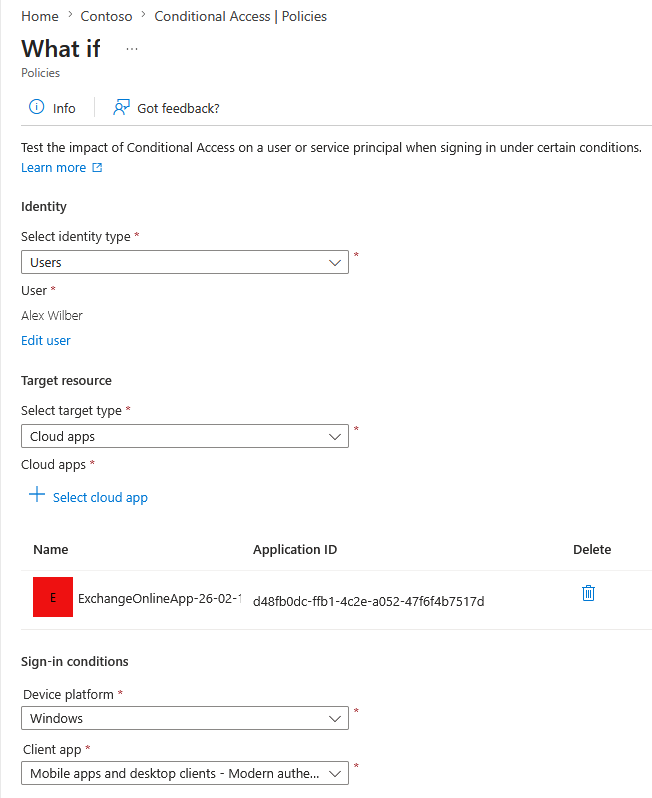
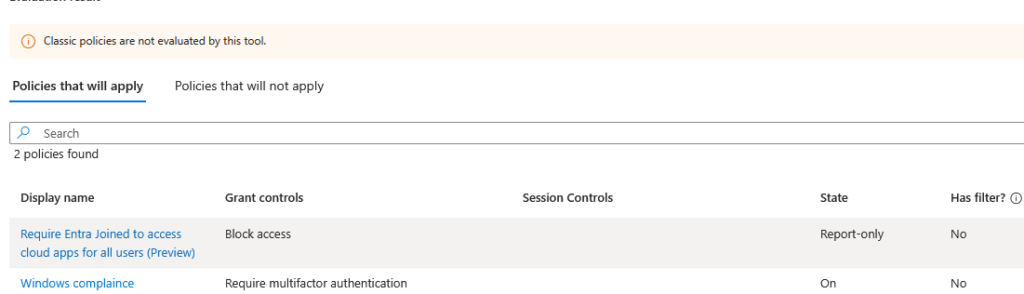
That’s what the What-If tool is for. You’ll find it in Entra ID > Conditional Access > Policies > The Policy > What-If (its on the top). Plug in a user, an app, a device platform, a client app, and it tells you exactly which policies would apply and what they would do. No test sign-in required.
It’s particularly useful when you want to see how different scenarios may or may not trigger a policy. For example, maybe you’re creating a policy that might be too narrow in scope. Throw it into What-If and see what happens. It’s not a perfect tool, but it’s still one worth keeping in your back pocket.
So now what? Well…
Go open your Conditional Access blade right now. Look at each policy and ask the simple questions: Who does this actually cover? What conditions are unconfigured that I assumed were handled? Is anything sitting in Report-Only that should have been enabled six months ago? You might be surprised what you find.
Also, and I cannot stress this enough: EXEMPT YOUR BREAK-GLASS ACCOUNTS FROM ALL CONDITIONAL ACCESS POLICIES. DO IT. DON’T FORGET IT. You do not want to be on the phone with Microsoft Support explaining a full tenant lockout because you missed that step. Trust me on this one.
Things We Learned
- Conditional Access is AND based. All conditions must be met before a policy fires.
- WHO and WHAT are required. No selection means the policy never fires. WHERE and Conditions are optional, not configuring them means they aren’t a factor.
- Saturn’s rings are only about 30 feet thick in most places despite being 175,000 miles wide.
- By selecting nothing in a condition, you’re selecting everything.
- Neutron stars are so dense that a teaspoon of one would weigh about 10 billion tons on Earth.
- Report-Only mode lets you validate a policy without enforcing it. Use it before you enable anything in production.
- If the entire history of Earth were compressed into 24 hours, humans would appear at about 11:58:43pm.
- Entra’s default refresh token lifetime is 90 days rolling. Without a sign-in frequency policy, users may go months without being fully reauthenticated.